To begin the simulator, click the Start Analysis button. This will begin the simulator and you will quickly see one row created for each task. A task consists of a point and a thinning model to simulate. For example, if the mode is CVS Compression Optimizer and both thinning methods are being simulated, then you would see two rows for each point. Each row has a progress bar to indicate how far it is from completion. Once a task is complete, it may be viewed and trended even if other tasks are still processing. To stop the simulation, click the Stop Analysis button. Anytime the options are changed, the simulation will have to be rerun which resets all the tasks, statistics, and trends.
If a task results in an error, the status column will turn red. If there is a warning, then the status column will turn yellow. To see the cause of failures and warnings, right-click the row and select Errors/Warnings. Make any appropriate changes, then rerun the simulator to try again.
Once a task has successfully completed, the status column will turn green, and the statistics columns will populate. By default, only a subset of the available columns are visible. To change the visible columns, right-click on any column header and click to enable and disable the columns you wish to view.
There are several options available to help you review the simulated results.
| Option | Description |
|---|---|
|
Column Headings |
To change columns, right-click the column header to view all available Columns. |
|
Trend |
To view a trend for up to 16 points, right-click point(s) and select Trend. See Trending Points below. |
|
View History Values |
To view all VHS entries for a point, right-click a point and select View Values… to open the History Value dialog box. |
|
View Point Record |
To open the Properties for Point dialog box for a point, right-click a point and select View Point Record…. See PNT Editor for more information. |
|
Apply Compression |
Select any completed Deadband Compression task, right-click and select Apply Compression to update the PNT record with the simulated compression method. See Applying Compression Settings below. |
|
Remove from list |
Right-click and select Remove from list for any point. |
|
Errors/Warning… |
Right-click and select Errors/Warnings… to view messages for any point. |
|
Export Results |
To export the data in the simulator to a CSV file, click Export Results. This will create a CSV file with a format similar to the grid. |
Points within the simulator may be trended by selecting the desired rows then right-clicking and selecting Trend. For any given point, there are three trending options:
The Modified and All options are only available if the Save Thinned Entries is enabled. When multiple rows are selected, the minimum number of graphs will be displayed. For example, if two rows are highlighted which simulate the same point with a different thinning model and the All option is selected, then you will see the original graph along with the modified graph for each task. A maximum of 16 points may be trended at any one time. The original data may be trended at anytime, although the modified data is only available after each task has completed.
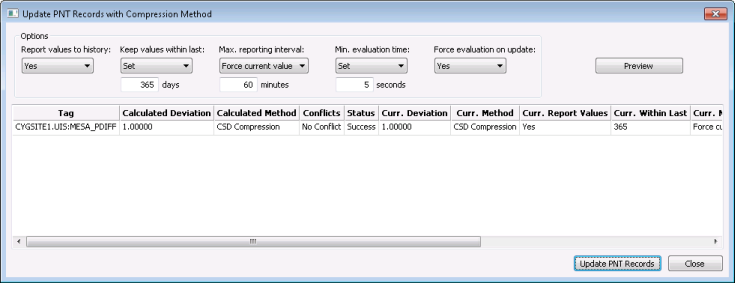
The CVS Compression Optimizer thinning mode provides the option to update the PNT record with the simulated compression method and several related settings. Highlight the completed tasks then right-click and select Apply Compression.
These settings, located on the History page of the point record, are:
Set the new values you wish to apply. Set the options to <Skip> to leave the point setting unchanged for that option.
You can also preview the compression method for the selected point in the Compression Preview feature. See Previewing Data Compression in the History chapter for more information.
Once the options are set as desired, click Update PNT Records. Once the update is complete, the status column will display the results. After closing this dialog box, you will notice that there is a check mark next to all tasks that have been applied to the PNT record. Tasks for points that had a different compression method applied will display no icon and tasks for points that have not been changed will continue to display the green light.

|
|
|

